

Animated wedding invitations can bring movement, music, and more of your story to the announcement. Create a video invitation by choosing a design, adding photos or clips, and setting your names, date, and details to music. Preview it, then share the video digitally or download it.
A video invitation still needs to make the essential details easy to find. A clear opening, readable text, and considered pacing help guests take in the message while enjoying the personal touches.
This guide explains how to create an invitation video, choose photos, clips, music, and design elements, and prepare the finished invitation for sharing. It also covers keeping the wording clear and the visuals true to your celebration, so the invitation feels personal without obscuring practical details.
Key Takeaways
- Start with a wedding video template, then shape the sequence around your announcement and essential event details.
- Choose photos, clips, text, music, and design elements that feel personal while keeping the invitation easy to read.
- Prepare the finished video for the way you plan to share it, whether by email, social media, a link, or download.
- Compare online tools by their editing options and sharing formats, then choose a digital invitation style that suits your celebration.
How to make a wedding invitation video online?
Start with an editable template, then add your names, event details, and chosen visuals. Preview the finished video before sharing it with guests.
Template Selection and Editing
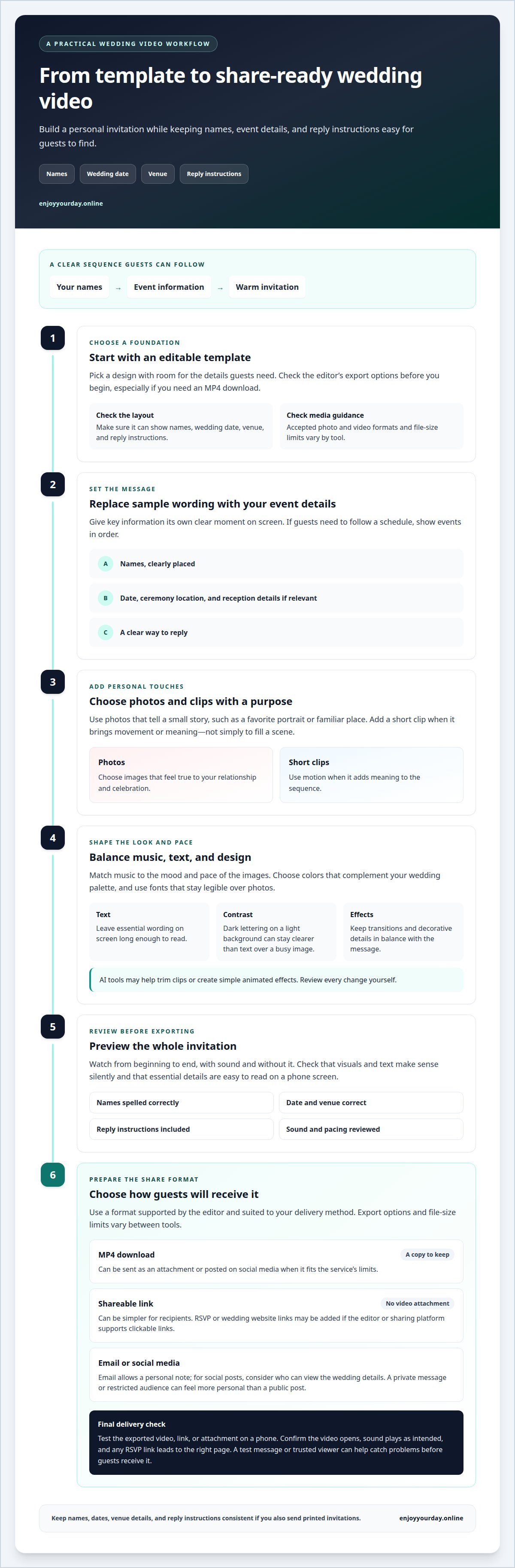
Choose a template with room for the details guests need: your names, wedding date, venue, and reply instructions. Replace the sample wording, then adjust the colors, type, and scene order to suit your celebration. For example, open with your names, follow with the event information, and close with a warm invitation.
Add photos or short clips if the template allows them. AI editing tools can help with tasks such as trimming clips or creating simple animated effects, but review every change yourself. Check the editor’s upload guidance for accepted photo and video formats and file-size limits before adding media, as these vary between tools.
Animated and Printed Invitation Choices
A video can bring photographs, movement, and music into your announcement, while a printed invitation gives guests a physical card to keep. The right format depends on how you want to present the celebration and how guests will receive the details. Keep the date, location, and reply instructions easy to find in either format.
You can use both: send the video digitally, then give or mail printed invitations to guests who want a keepsake. Before sharing, compare the wording in both versions. Matching names, dates, and venue details helps the invitations feel like parts of one announcement.
Cost, Sharing Formats, and Timing
Can you create animated wedding invitations for free? Some online editors let you begin without payment, but access to templates or a finished download may depend on the tool. Review its export options before editing, especially if you need an MP4 file to send or save.
For sharing, choose a format the editor supports and that suits your delivery method. An MP4 download can be convenient for sending as an attachment or posting on social media, while a shareable link avoids attaching the video. File-size limits vary, so use the editor’s stated upload and export limits.
Send invitations early enough for guests to make plans, allowing more notice when travel or accommodation is involved. Timing depends on your event and your guests’ arrangements, so choose a date that gives them time to respond.
Personalizing invitations with photos, clips, text, music, and design elements
Personal touches can make a video feel like your announcement rather than a generic template. Include your names, wedding date, location, and clear reply instructions so guests know what to do.
Photos, Clips, and Music
Choose photos that tell a small story, such as a favorite portrait or a familiar place. Add a short clip when it brings movement or meaning, not just to fill a scene. Match the music to the pace and mood of your images. For example, a gentle instrumental track can suit a quiet sequence, while a lively choice can complement playful clips.
Preview the video with sound and without it. This helps you check that the images and text still make sense when guests watch silently.
Names, Dates, and Invitation Details
Place your names where they’re easy to see, then give the date and venue their own clear moment. Include the ceremony location, reception details if relevant, and a way to reply. If guests need to follow a schedule, show each event in order, such as the ceremony first and the reception afterward.
Keep essential wording on screen long enough to read. A final preview can catch a misspelled name, incorrect date, or missing location before you share the invitation.
Wording and Visual Design
Use wording that sounds like you, from a formal announcement to a warm, direct invitation. Choose colors that complement your wedding palette, then pair them with fonts that remain legible over photos. For example, place dark lettering on a light background rather than over a busy image.
Keep transitions, decorative details, and music in balance. A restrained design lets the names and event information lead. For another way to present your announcement, explore a thoughtful wedding invitation design.
Sharing invitations by email, social media, links, or MP4 download
Choose a sharing method that suits your guests and the finished video. A digital wedding invitation can travel as an email link, a social media post, or an MP4 file.
Before sending, watch the exported video from beginning to end. Confirm that the names, date, venue, and reply instructions are clear on a phone screen. Then send yourself a test email or message, and open its link or attachment.
Email works well for a personal announcement and a direct note to each guest. Add a short message with the ceremony details, then include the invitation link or attach the MP4 when the file fits the email service’s limits. If the video is too large to attach, share a link instead.
For social media, consider who can view your post before sharing wedding details. A private message or restricted audience can make the invitation feel more personal than a public post. Include a brief caption so guests know the date and what to do.
Can animated invitations include RSVP links and wedding website links? Yes, if your editor or sharing platform supports clickable links. Add them to the accompanying email, message, or invitation page; text shown inside an MP4 may not be clickable.
Downloading an MP4 gives you a copy to keep and share through the channels you choose. A hosted link can be simpler for recipients, while an attachment keeps the video with your message. Select the option your editor provides, then test it on a phone before sending it to guests.
Use a brief checklist before sharing: the video opens, the sound plays as intended, and the RSVP link leads to the right page. For example, ask someone you trust to open the link and read the event details. This final check helps make the invitation and response process clear.
Share the invitation as an email link, a social media post, or an MP4 download. Attach the MP4 only if it fits the email service’s limits; if it is too large, share a link instead.
What are the best apps and websites for animated wedding invitations?
The right editor depends on your invitation and sharing needs. Compare template editing, photo and music options, preview tools, and export choices before you begin. For example, a browser-based editor may suit couples who want to work on a larger screen, while a phone app can make quick edits convenient.
Use this checklist to assess a tool:
- Editing: Can you change the wording, colors, fonts, and scene order?
- Personal touches: Can you add your own photos, clips, and music?
- Sharing: Can you save an MP4 or create a shareable link?
- Ease of review: Can you preview the invitation before sending it?
Check how the template handles essential details. Separate scenes for names, date, venue, and RSVP instructions can keep each item readable. If you plan to include a wedding website link, check whether the editor makes links clickable or whether you’ll need to add it to your message.
For a practical comparison, test two editors with the same short invitation. Add a portrait, your names, the ceremony date, and a location. Preview both versions on a phone, then see which layout keeps the text clear and makes exporting straightforward. This reveals more than a template thumbnail.
Animated wedding invitations work best when they’re easy to open and understand. Before choosing an app or website, check its file formats, upload limits, and sharing options. Then choose a tool that supports your preferred delivery method, whether that’s email, social media, or a link.
To make your announcement part of a ready-to-share invitation, create a wedding invitation card.
EnjoyYourDay: Birthday invitation cards
EnjoyYourDay offers wedding invitation cards for couples who want their announcement to arrive with a personal touch. Each digital card displays an envelope that opens on a phone to reveal the sender’s message, creating a letter-like moment for guests.
Choose a wedding invitation card when you want to share the celebration digitally in a warm, distinctive way. EnjoyYourDay also offers birthday, baby shower, and baptism invitation cards, with 45 themes across its invitations. Select a theme that suits the occasion, then prepare your message for guests.
Visit EnjoyYourDay online to explore invitation cards for your celebration.
Begin shaping your wedding announcement
Your invitation can set the tone for the gathering before the day itself. Choose one detail that feels distinctly yours, such as a favorite photograph, a meaningful song, or a line you would say aloud. Let that choice guide the design instead of adding effects just because they’re available.
Thoughtful animated wedding invitations balance personal expression with clear information. Give guests an announcement that feels like you, while making the practical details easy to find. A simple final review helps ensure the invitation is composed and ready to share.
EnjoyYourDay offers birthday, wedding, and baby shower invitation cards. If you’d like help choosing an invitation for your celebration, contact EnjoyYourDay about your invitations.
Let your first announcement open the door to a day worth celebrating.
Frequently Asked Questions
What are animated wedding invitations?
Animated wedding invitations present event details through motion, such as moving text, image transitions, or an envelope-opening effect. Some are short video files; others are digital cards that open on a phone. For example, a card can reveal the couple’s message as an illustrated envelope unfolds. The movement adds visual interest, while clear event details keep the invitation useful.
Where can I make animated wedding invitations online?
You can create them with an online video editor or choose a digital invitation service. Editors typically let you build a sequence from a template, then add wording and media. EnjoyYourDay offers wedding invitation cards that open like a letter on a phone. If you want animated wedding invitations with a message revealed by an opening envelope, consider a digital card rather than a video-editing template.
How much do animated wedding invitations cost?
Costs depend on the format and provider. A video editor may charge for access or downloads differently from a service selling individual digital cards. EnjoyYourDay sells themed invitation cards as one-time purchases, with displayed prices varying by design. Compare what each option includes, such as an editable video, a downloadable file, or a digital card, before choosing how to create your announcement.
How do I send animated wedding invitations by text, email, or social media?
Send a shareable link or downloaded file through your chosen channel. For a text message, add a personal note. For email, include the event details in the message too. On social media, choose an audience suited to wedding information. EnjoyYourDay invitations can be sent by WhatsApp, text message, or email, so choose a channel your guests use.
Are animated wedding invitations accessible on different devices and email apps?
Access depends on the invitation format and the recipient’s device or app. A video attachment needs a compatible player, while a hosted invitation opens through its link. Before sending, test the invitation on a phone and computer, and open its link in an email app. Keep key details in your accompanying message so guests can find them if the media doesn’t load as expected.
What formats and file sizes work best for sharing animated wedding invitations?
An MP4 is convenient to attach or post, while a shareable link is better if the video is too large for an email attachment. File-size limits vary by editor and email service, so check their stated limits before exporting or sending.